
POWERSCADA
VNC, Video and Files
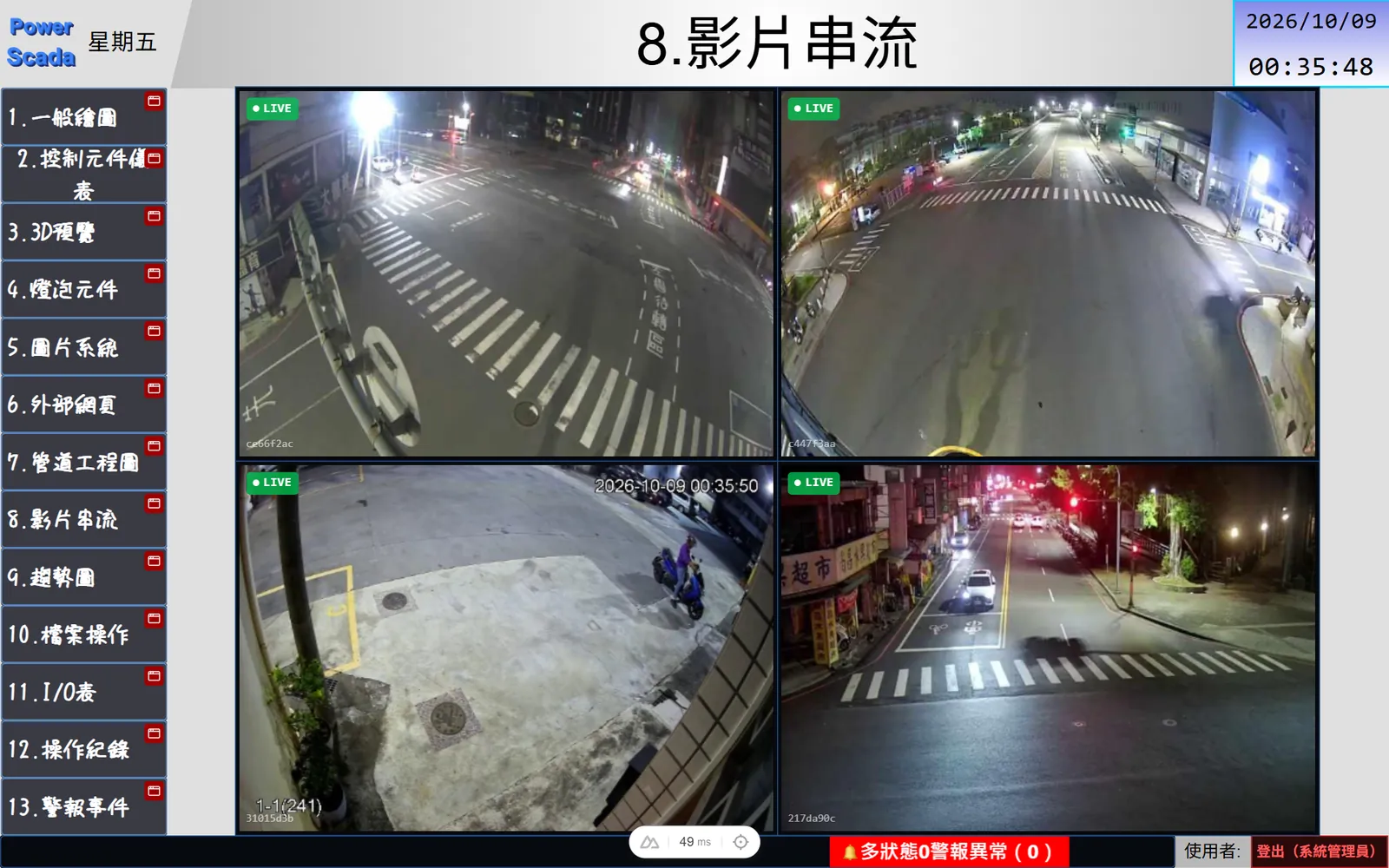
A site often has several HMI panels, several cameras and CNC machines that need to send and receive part programs. PowerScada puts all of them on one SCADA screen: view and touch-operate HMI panels directly, watch live camera video, replay recordings from before and after an equipment event, and browse files on the host and on remote servers.
Operators do not have to switch between several tools, and the footage from the moment of an event can be found afterwards.
VNC remote screens
View and touch-operate HMI panels with a built-in VNC server (Weintek, Pro-face, Siemens and others) or Windows and Linux desktops directly on the screen. The back end sends only the changed regions, and several browsers share one back-end connection.
- Touch mapping: one finger is the left button, a 0.6-second long press is the right button, and a physical mouse and wheel are passed through as is.
- Connection modes: "connect only while viewed" (disconnects after an idle period once the last viewer leaves, 10 seconds by default, so the HMI's client slots are not occupied long-term) or "persistent" (connects at project start and reconnects every 2 seconds when dropped).
- Read-only mode and an operation level can be set; both viewing and operation are written to the operation log.
- Supports Raw, CopyRect, Hextile and ZRLE encodings and the standard VNC password; default port 5900.
Cameras and event recording
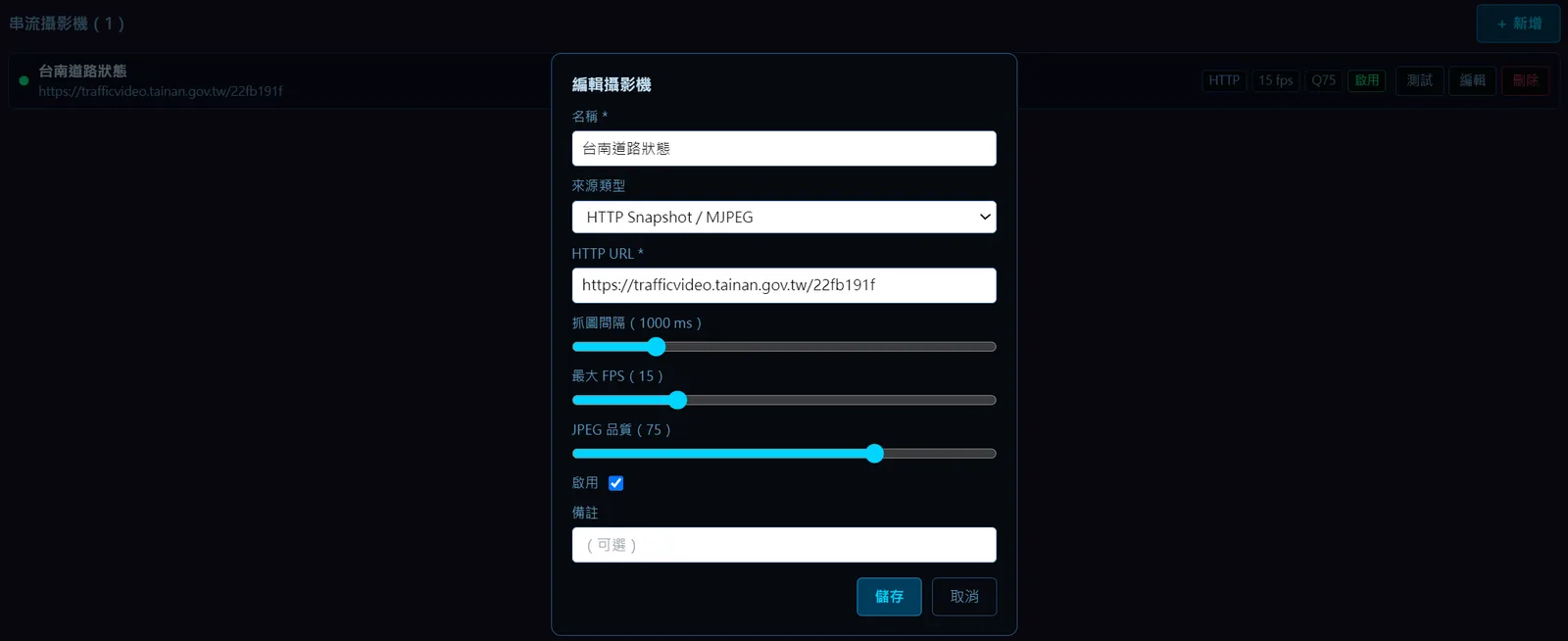
A camera's RTSP address and credentials are maintained in the communication settings; the screen component only needs the camera selected and can show online and offline badges. With "Enable event recording" ticked, the back end keeps the last N seconds of frames in memory, and a background task saves the frames from before and after the trigger as a clip when its condition is met.
- Up to 300 seconds before and 600 seconds after the trigger; a new trigger from the same source merges and extends the clip, up to 30 minutes per clip.
- Camera recording at 1 to 15 frames per second; a persistent VNC screen can also be recorded, at a fixed 2 frames per second.
- Event recording playback component: lists clips, play, pause, jump to the trigger point, 0.25× to 4× speed; previous and next clip and previous and next frame can be controlled by Boolean PLC tags.
- Clip retention rules are in the project settings: storage directory (can be changed to USB or SD card), memory limit, disk limit and retention days; clips can be marked "protected" to exclude them from automatic cleanup.
Files: FTP, remote connections, file browser, USB
The SCADA host can start an FTP file server with one click so CNC machines, vision cameras and other equipment can connect to send and receive files; several accounts can each be read/write or read-only, and the server starts and stops automatically with deployment.
- Remote file connections: several SFTP, SCP and WebDAV channels, with one-click retrieval of the server fingerprint; scripts can upload, download, move and delete files between the host and remote servers, with automatic reconnection.
- File browser component: browses folders and files under a specified root directory on the host, with extension filtering and list or large-icon views; on selection it writes the path, file name, extension and so on to tags for a sequence button or script to continue with.
- USB drives: up to 4 slots on Linux devices, mounted read-only and checked for insertion and removal every 3 seconds; the video player can play mp4, webm and ogg files straight from USB.
- The communication fault banner also covers camera streams and remote file connections.
Screenshots
How to set it up
- 1Add a connection under "VNC remote screen" in the communication settings: name, host IP, port and password; click "Test" to confirm the connection and get the remote resolution.
- 2Place a "VNC remote screen" component on the canvas, select the connection and set an operation level if needed.
- 3To record, tick "Persistent" first and then "Enable event recording"; for cameras, tick it in the camera settings and set the frame rate and pre-trigger seconds.
- 4Add a background task with the "Record clip" action, choose the source and set the seconds before and after the trigger; the estimated clip size is shown live.
- 5Set the storage directory, memory limit, disk limit and retention days under "Event recording" in the project settings.
- 6After deployment, view in the runtime; replay clips in the editor's "Event recording" panel or place an "Event recording playback" component on the screen.
FAQ
FAQ
Will the VNC screen permanently occupy a client slot on the HMI panel?
By default it connects only while viewed: the first browser to open the screen triggers the connection, and it drops about 10 seconds (configurable from 0 to 600 seconds) after the last viewer leaves; several browsers share one back-end connection. Only ticking "Persistent" occupies a slot permanently.
Can event recording clips be opened in an ordinary player?
A clip is a series of JPEG frames packed into an uncompressed zip with an index file. View it in the editor's "Event recording" panel or the runtime's "Event recording playback" component; you can also open the zip with any unzip tool and browse the frames one by one.
Can the file browser upload or delete files?
At present it only browses and selects, writing the selected path to tags for scripts or sequence buttons. For sending and receiving files, use the FTP file server or an SFTP, SCP or WebDAV remote file connection together with a script.