
POWERSCADA
Access Control and Operation Log
PowerScada splits permissions into two layers: an account's role decides who can open the editor, who can deploy and who can manage accounts; a screen component's operation level decides the minimum account level needed to press that button.
Every tag write, script trigger, page change and popup open or close leaves an entry in the operation log with the operator, the time and the values before and after. The project protection password and encrypted exports make sure that someone with an engineer account but without the password can neither see nor take away the screen design.
Roles and operation levels
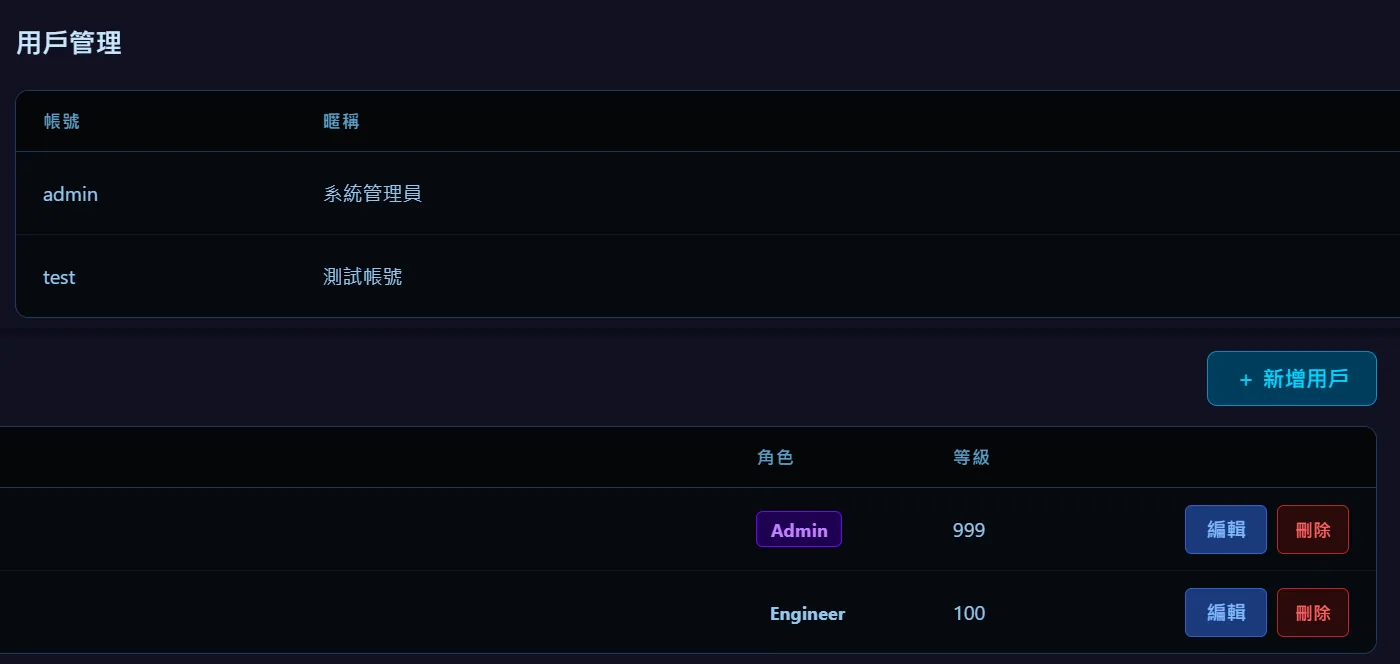
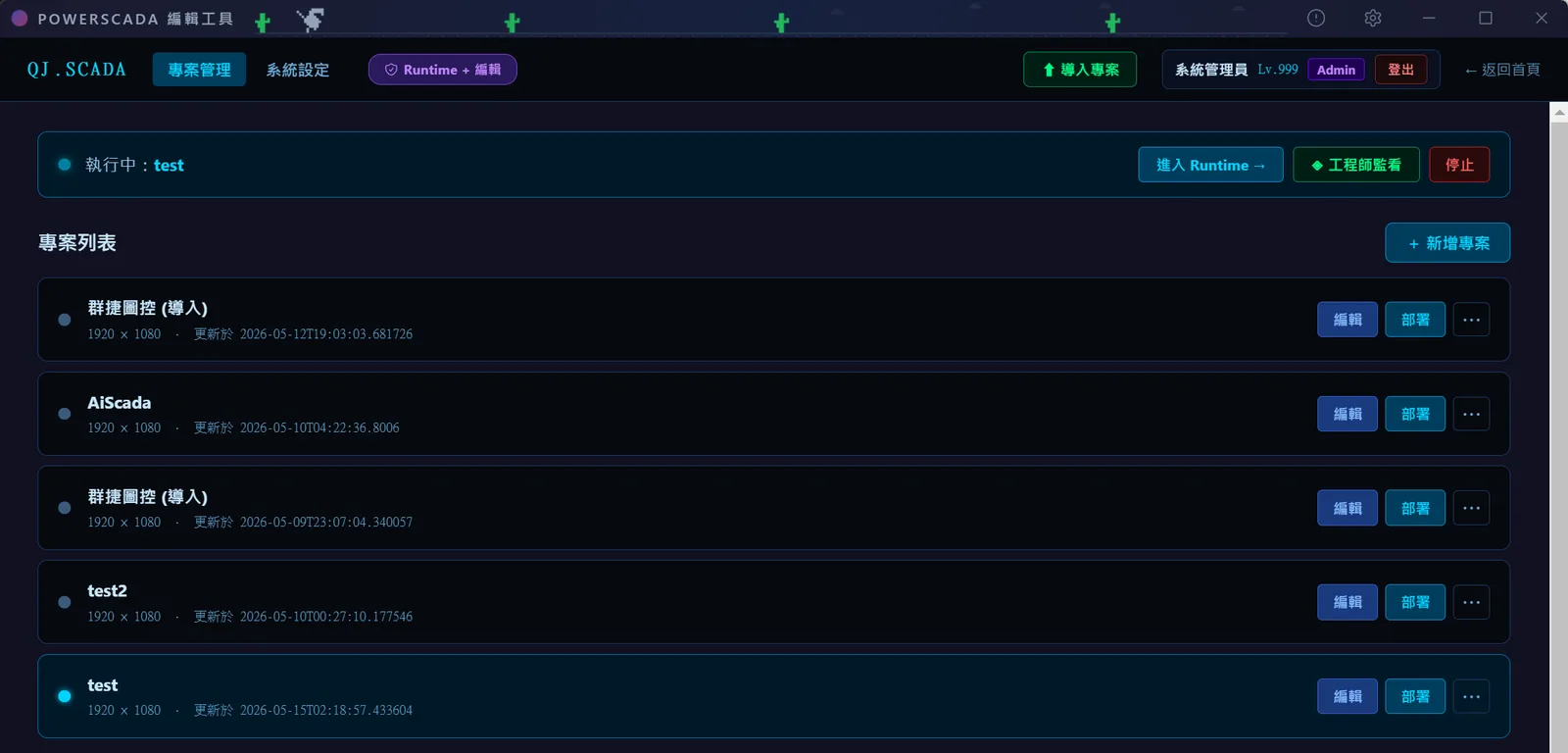
Three roles can be assigned: Admin can use the editor, the runtime and user management; Engineer can use the editor and the runtime; Operator can use the runtime only, including the Project Center, deploy and stop. Each account also has an operation level from 0 to 999, which is compared against the level of screen components.
- Standard buttons, function buttons, hyperlink buttons, numeric displays, seven-segment displays, alarm panels, sliders, value write buttons, VNC remote screens and more can be given an operation level; 0 means no restriction.
- How insufficient permission is handled is selectable: block silently, show semi-transparent and ignore clicks, hide, or show an "Insufficient permission, level N required" prompt.
- The acknowledge action of an alarm panel has its own separate acknowledge level.
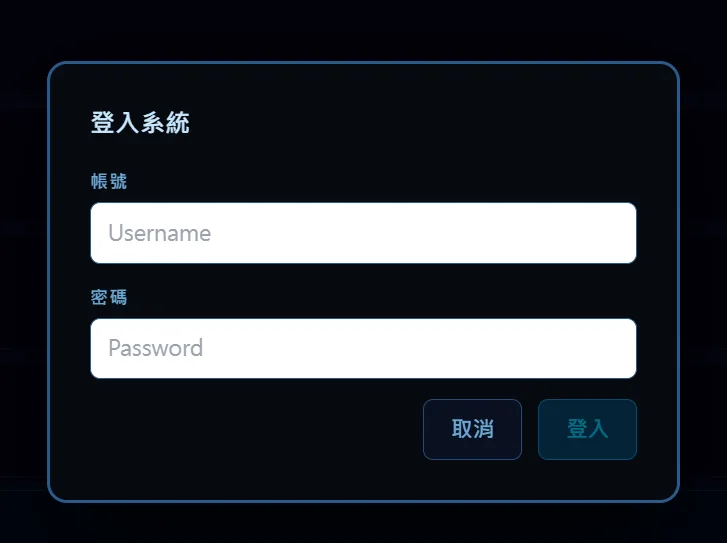
- Normal runtime operation does not require login; the login dialog only appears for components that have a level set when the current level is insufficient.
Login, logout and custom login pages
Place a login button on the screen to call the built-in login dialog, or point it to a custom login popup page. The logout button text supports the ${username}, ${displayName}, ${userRole} and ${userLevel} placeholders and can be set to hide automatically when nobody is logged in.
- Text display components can bind the system variables loginUsername and loginPassword (with password masking and a virtual keyboard) to build your own login screen.
- The editor renews the login automatically before it expires; when it has fully expired, a login dialog appears in place, work continues after login and unsaved changes are kept.
- Both login and logout buttons support multi-language binding.
Operation log
Each entry records the operation type, tag path, old value, new value, script name, description, operator and time. Types cover tag writes, script triggers, page navigation, popup open and close, link open, momentary button press and release, screensaver redirects, background tasks (operator: system) and watch panel writes.
- The operation log viewer component can be placed on a screen: paged queries, newest first, auto-refresh (30 seconds by default) and four customizable columns. The paging controls in the footer can also be driven by Boolean PLC tags, which suits small touch panels.
- The editor's bottom panel has an Operations tab; the API and MCP tools can filter by operation type, user and time range.
- A background task can export the operation log to Excel on a timer.
- The log can be stored in PostgreSQL, local SQLite or an external database.
Project protection password and encrypted exports
Once a protection password of at least 8 characters is set on the Security page of the project settings, opening the editor, reading or writing scripts, the full communication settings, alarm and trend settings, page editing and export all require the password first, and MCP and AI assistants must unlock the project too; it is entered once per login session. Project files exported from a protected project are encrypted automatically, ordinary unzip tools cannot open them, and the same password is required on import. When the project is pushed remotely to another device, the password setting travels with it.
Screenshots
How to set it up
- 1Log in as Admin, add accounts in user management and assign a role and an operation level.
- 2In the editor, set an operation level and the insufficient-permission behavior on the buttons, numeric fields and other components that need control.
- 3Place login and logout buttons on the screen, or build a custom login page with popup mode and text display components; add an operation log viewer for on-site review.
- 4Set the project protection password on the Security page of the project settings; project files exported afterwards are encrypted automatically.
- 5After deployment, operators on site can use ordinary components without logging in; a component with a higher level brings up the login dialog, and after login the action is recorded with the operator's name.
- 6Afterwards, query the log in the operation log viewer, the editor's Operations tab, or through the API or MCP, filtering by type, user and time.
FAQ
FAQ
Does the touch panel on site need a login every time?
No. Runtime screens do not require login; button writes, alarm acknowledgment and page changes all work as usual. The login dialog only appears for components that have an operation level set when the current level is insufficient.
What is the difference between a role and an operation level?
The role (Admin, Engineer, Operator) decides whether you can open the editor, deploy and manage accounts. The operation level (0 to 999) is a number on the account that is compared with the level of a screen component to decide whether that button can be pressed.
Can someone else open an exported project file?
If the project has a protection password, the exported project file is encrypted automatically, unzip tools cannot open it and the same password is required on import. A project without a password exports as before, unencrypted.