
POWERSCADA
One-Tag Language Switching
PowerScada handles multiple languages with a dictionary inside the project: each label holds text in eight languages, and the buttons, indicator lights and text on screen are bound to labels instead of hard-coded strings.
Which language is shown is decided by one integer tag chosen in the project. Whether the PLC changes the value, a button writes it or a script writes it, every connected screen switches text at the same time, with no redeployment. Components that do not use multi-language, and older projects, are completely unaffected.
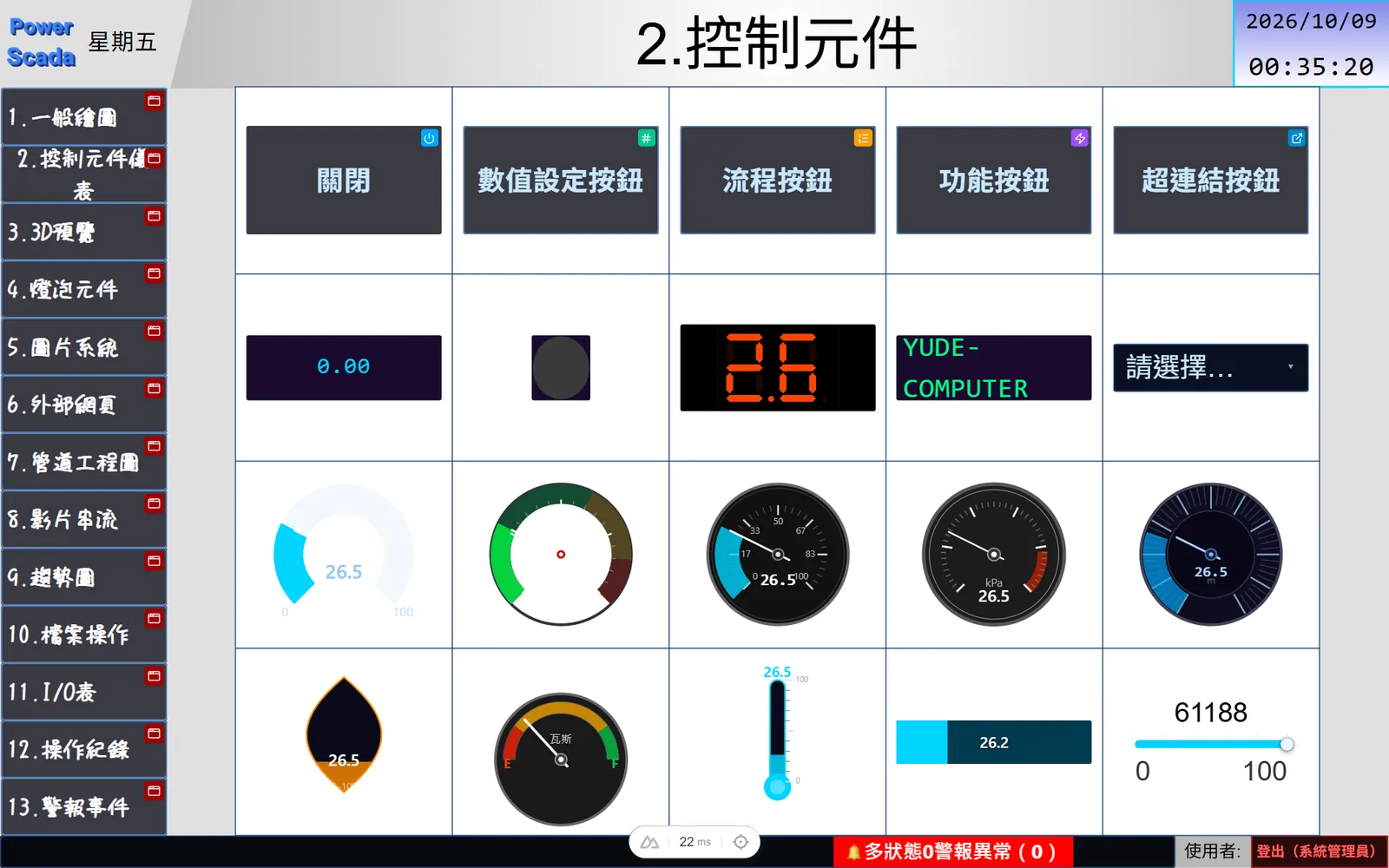
Dictionary and switching mechanism
The dictionary has one label per row, with columns for the label name, the number of states and languages 0 to 7. Each label can have 1 to 256 states: enter 2 for Boolean components, the component's number of states for multi-state indicators, and 1 for plain text.
- A fixed set of eight languages (index 0 to 7) with custom names, for example 0 = Traditional Chinese, 1 = English, 2 = Japanese.
- The value 0 to 7 of the language-switch tag is the current language; if no tag is bound, the tag is offline or the value is out of range, language 0 is shown.
- State mapping depends on the component type: buttons and indicator lights use state 0 for OFF and state 1 for ON, multi-state indicators follow the state index, and the i-th option of a drop-down uses state i.
- Dictionary text can use placeholders such as ${username} and ${pageName}.
Bindable components and fonts
Twelve component types support multi-language: standard button, value write button, function button, sequence button, hyperlink button, login and logout buttons, indicator light, numeric indicator, multi-state indicator, drop-down and static text. Tick "Use multi-language" in the properties panel and choose a dictionary label; the existing font, text position and ON/OFF images are all kept.
- Each language can have its own font settings (family, size, color, bold, italic), so Japanese or German text of a different length can be adjusted separately.
- The Language drop-down on the toolbar only affects the editor preview; it does not write the tag or change the device's current language.
- The properties panel has "Edit multi-language" and "Add multi-language" buttons, so labels can be maintained without leaving the canvas; typing in the filter box lists candidate labels.
A workflow for translators
"Export Excel" writes the whole dictionary to an xlsx file with a fixed header of label, state and language 0 to language 7, one row per state, so translators do not need to know PowerScada. After it is filled in, "Import Excel" matches by label name: existing labels are replaced as a whole, new ones are added and labels missing from the file are kept. You can also copy a block straight from Excel and paste it into the dictionary table.
- The dictionary is an independent sync section, so edit-while-running can sync just the dictionary without a redeployment.
- The runtime updates its text as soon as the dictionary is saved; the project export contains a separate multi-language file.
- Search looks through label names and the eight-language text of every state, highlighting matches with a red frame.
Screenshots
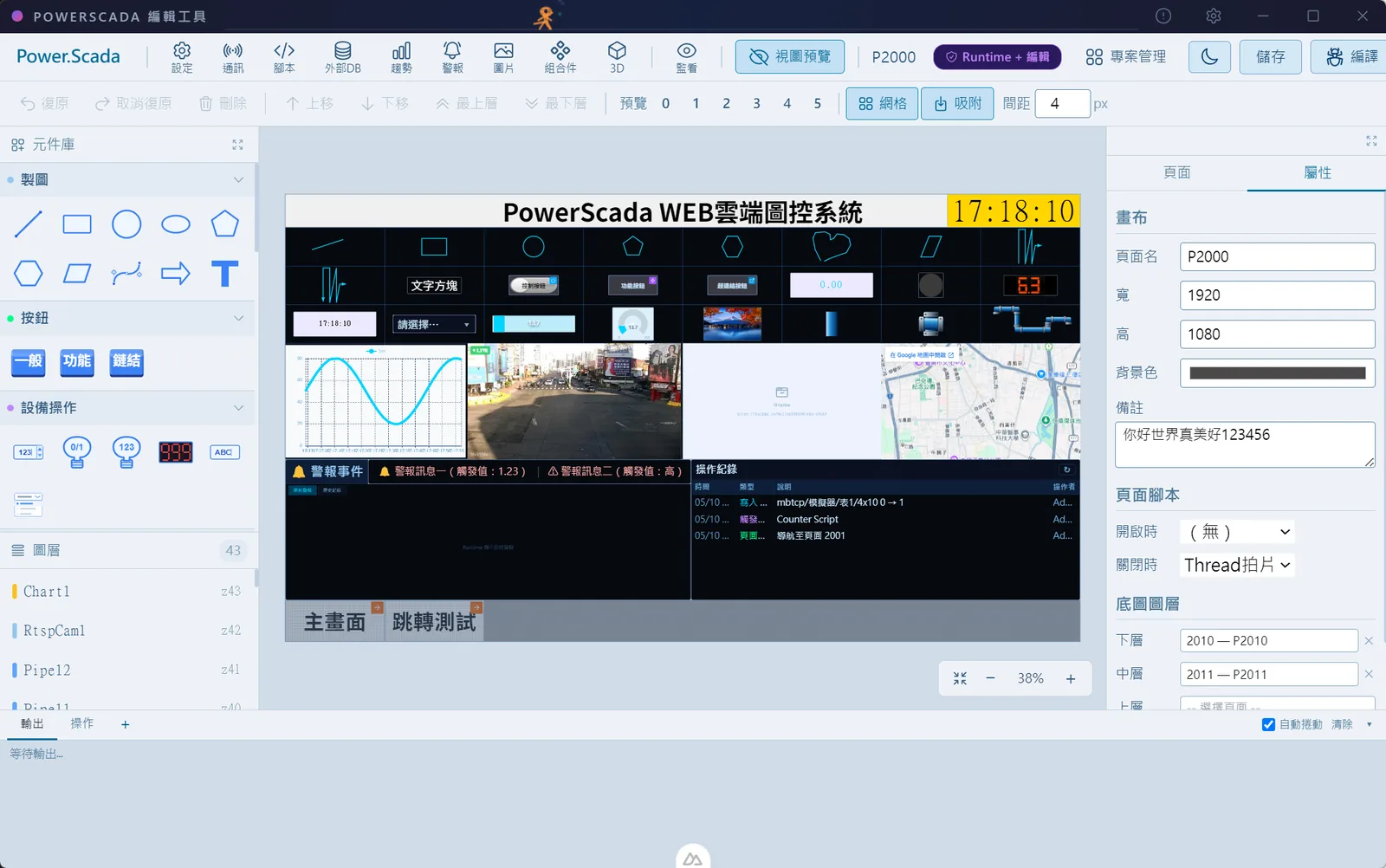
How to set it up
- 1Click "Multi-language" in the editor top bar, name the eight languages and choose an integer tag as the language-switch tag.
- 2Add labels, set the number of states and fill in the text for each language, or export to Excel, have it translated and import it back.
- 3Click Save to write the dictionary.
- 4Back on the canvas, select a component with text, tick "Use multi-language" and choose a label.
- 5Use the language drop-down on the toolbar to preview the text length and layout in each language, adjusting that language's font if needed.
- 6Place a button on the screen, or have the PLC or a script write the language-switch tag (0 to 7), and every screen switches at once.
FAQ
FAQ
Does switching language require a redeployment?
No. The current language is decided entirely by the value of the language-switch tag; change the value and every screen switches at once. Saving changes to the dictionary itself also updates the runtime text immediately.
Our translators do not know PowerScada. How do we work with them?
Export the dictionary to Excel from the dictionary panel. The header is fixed as label, state and language 0 to language 7; hand it to the translators and import it when it comes back. The system matches by label name: existing labels are replaced as a whole and new ones are added automatically.
What is shown when a language is left blank?
An empty string. The system does not fall back to another language or to the component's original text. We recommend checking for blank cells with the dictionary search or in Excel before importing.