
POWERSCADA
C# Scripting Engine
Drag and drop plus configuration cover most needs; C# scripts handle the rest. Compiled by Roslyn and run on the back end, they read and write any tag, check communication status, call external HTTP APIs, export Excel and send files to remote hosts, for cross-device interlocking and automation logic that reduces the need for extra PLC programming.
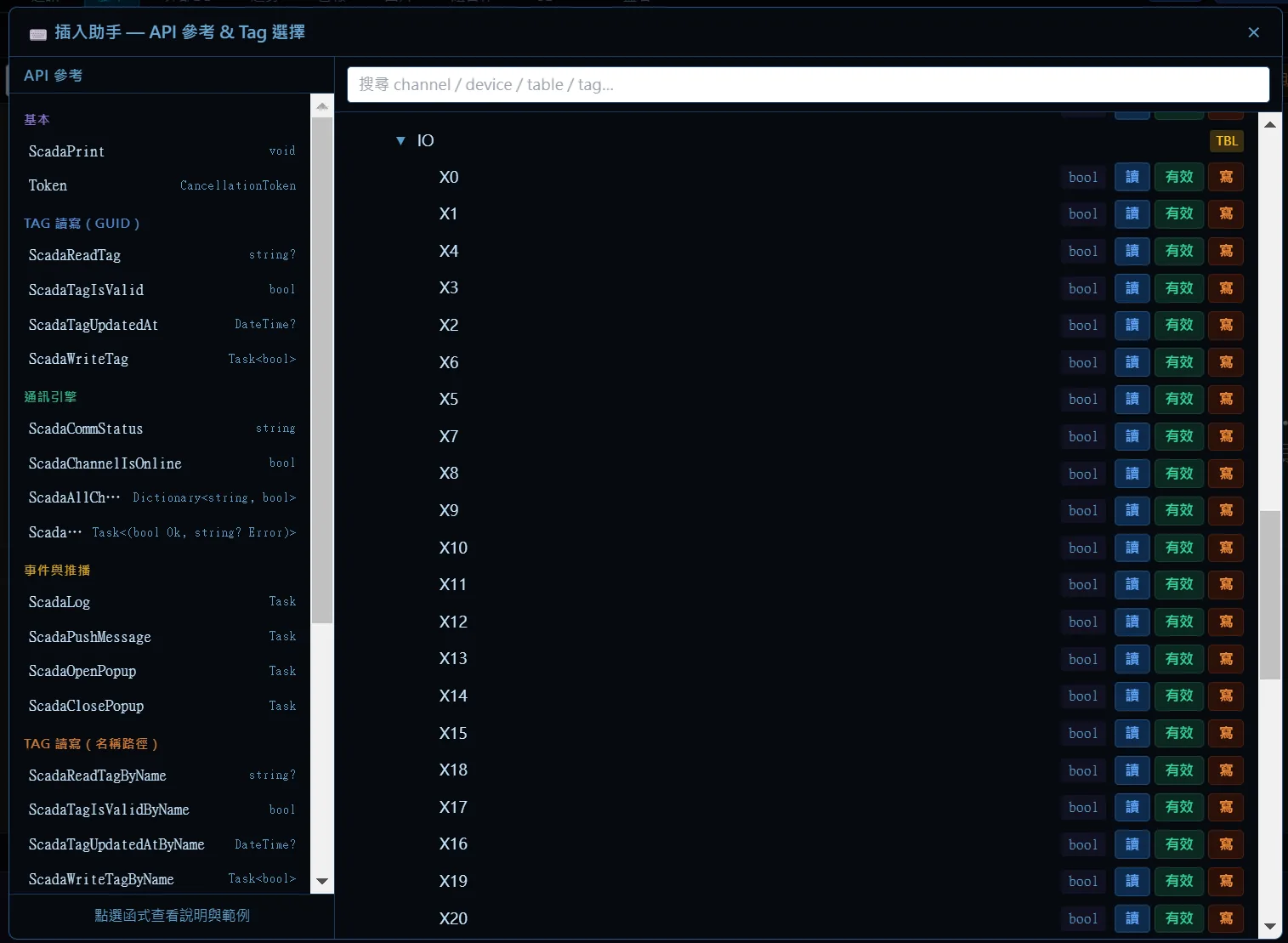
The script editor uses the same Monaco engine as VS Code: C# syntax highlighting, live diagnostics with red squiggles, auto-completion, and an insert helper that inserts read and write code from the tag tree with one click.
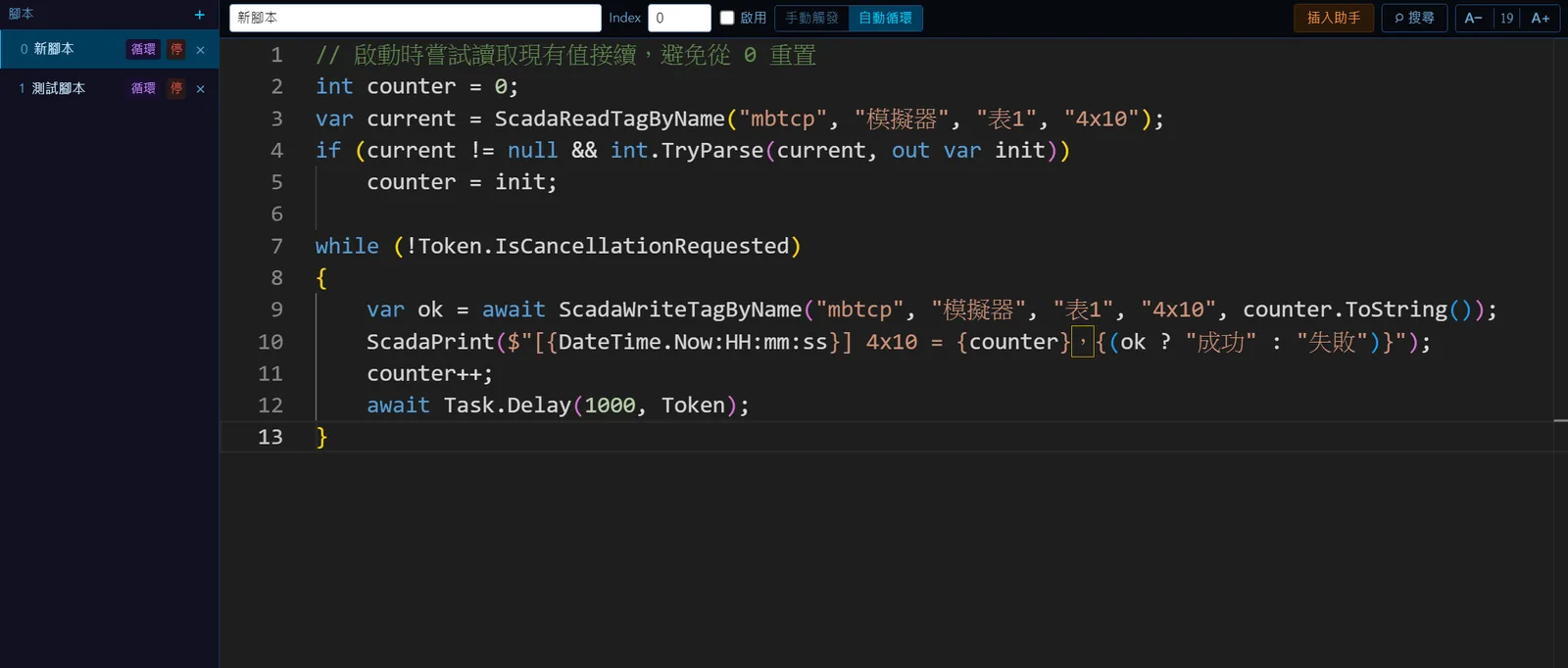
Three run modes and trigger sources
Manual trigger (default): compiled and waiting, runs once when triggered. Auto loop: resident from runtime start, restarting automatically when the loop ends. Global script: one per project, holding only the variables and functions shared by all scripts.
- Trigger sources: function button press, long press and release; sequence button steps; schedules; page enter and leave; a background task condition being met; function keys F1 to F12; and "Run once" in the editor.
- Detecting tag changes: a loop script with the rising-edge and falling-edge functions (LDP, LDF), or a background task condition that triggers the script.
- Each script has its own thread and cancellation token; on update the old version is cancelled first, waiting up to 3 seconds before the new version starts.
Available API
Every API starts with Scada and returns a failure result with a message (in Chinese) on error instead of throwing an exception that aborts the script.
- Tags: read and write by ID or by "channel, device, table, tag" path; typed reads return success, data and message; read and write of single array elements and single bits; safe conversion functions.
- Global variables: read and write them directly as Global.name; they are in-memory variables that are not polled from the PLC and can be persisted.
- Communication and events: channel online status, status of all channels, write operation events, push messages to every screen, open and close popups, buzzer, and output to the script panel.
- Screens: override component position, size, rotation and font in real time, and control video playback.
- HTTP and JSON: native HttpClient and System.Text.Json, with GET and POST sample snippets.
- Files: local copy and delete; remote copy and delete (SFTP or SCP as set in the remote file connection; upload, download and relay are detected automatically).
- Excel and reports: export trends (raw or aggregated), alarms and the operation log, tag snapshots, read Excel, write tags from Excel and create Excel files.
Editor assistance
Auto-completion covers the whole Scada API, tag names listed dynamically after Global., global script members, LINQ, HttpClient, DateTime and JSON, with errors diagnosed as you type. The insert helper has an API reference on the left (with description cards and insertable samples) and a channel-to-tag tree on the right with online indicators and one-click inserts for read, valid and write; the output panel at the bottom shows printed output and execution status.
Screenshots
How to set it up
- 1Open "Script management" from the editor toolbar and add a script (manual trigger by default, to avoid unintended automatic execution).
- 2Write C# in the editor, using the insert helper to insert read and write code from the tag tree or samples from the API reference.
- 3Fix errors flagged by the live diagnostics and click "Run once" to see the result in the output panel at the bottom.
- 4Decide the mode: switch resident logic to auto loop and use delays with the cancellation token inside the loop; use manual trigger for buttons, schedules and reports.
- 5Bind a trigger source: function button, sequence button, schedule, page settings, background task or function key.
- 6Click Deploy so the runtime loads the new version, and track execution in the output panel and the operation log.
FAQ
FAQ
How do I trigger a script when a tag changes?
Scripts have no change-event subscription. Either poll in an auto-loop script and use the rising-edge function to act once on OFF to ON, or skip the code and create a background task with a condition and the "Trigger script" action.
What help does the editor give?
The Monaco editor, the same as VS Code, provides C# highlighting, auto-completion (the whole Scada API, dynamic tag names after Global., global script members) and live red-squiggle diagnostics. In the insert helper, the API reference on the left inserts samples and the tag tree on the right inserts read, write and valid code with one click.
Why do values read by a script need converting?
Tag reads always return strings, and an empty value when communication is not ready; calling Convert directly throws an exception and aborts the script. Use the safe conversion functions or a typed read, check for success before using the data, and read the failure reason from the message field.