
POWERSCADA
Schedules and Background Tasks
PowerScada has two kinds of automation that need nobody present: schedules run server-side jobs on a Cron expression, and background tasks watch tag values continuously on the back end and perform screen or server actions when a condition is met.
Both run on the back end and do not depend on any screen being open, which solves two problems of traditional HMIs: nothing happens once the screen is closed, and automation requires PLC programming.
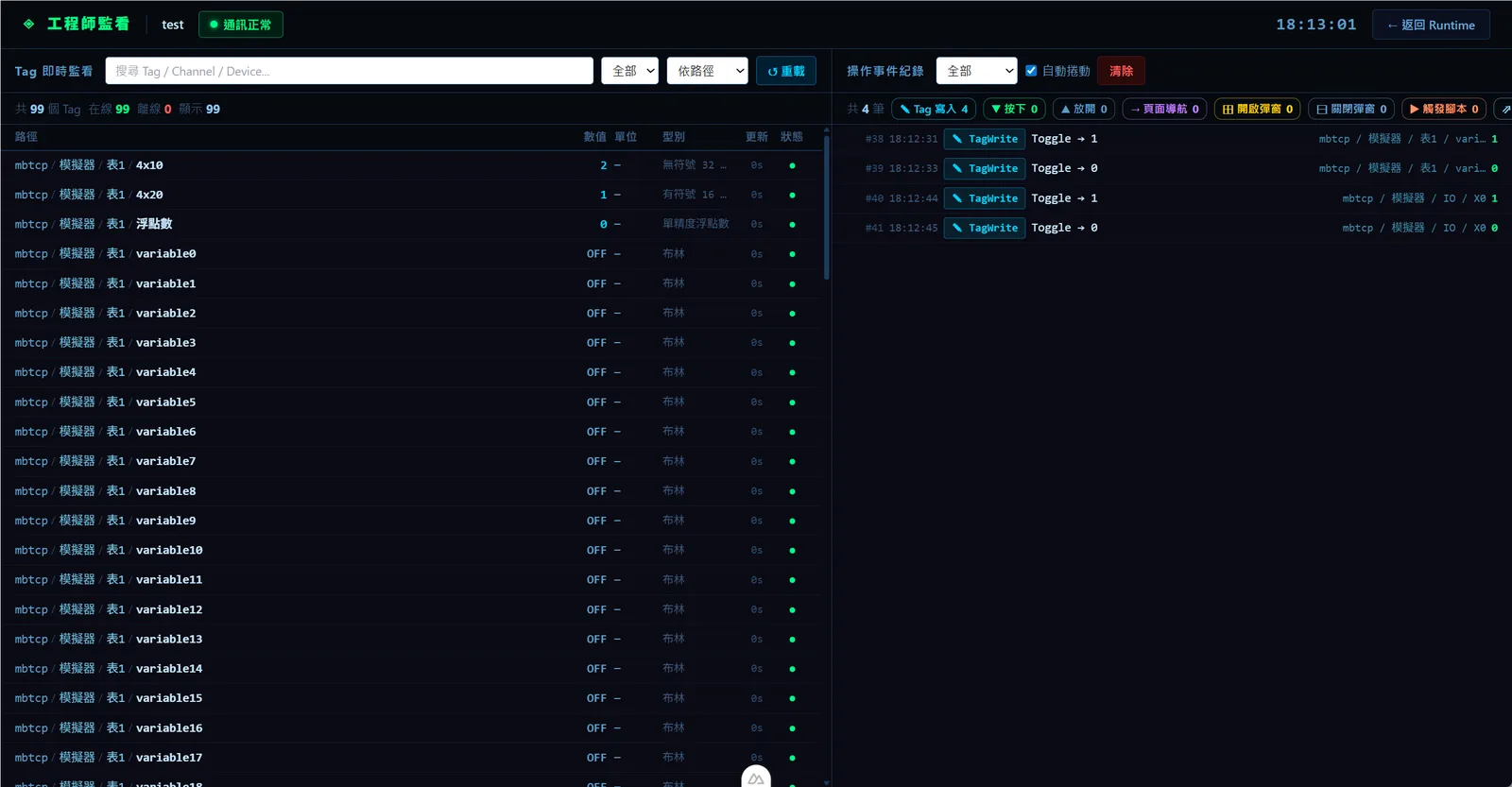
Schedules
Schedule types include trigger script, generate report, export trend Excel, export alarm records, export operation log, back up project and print file. The next run time is calculated in the project time zone, and the list shows "Next run" and "Last run" to the second.
- Each schedule records its last run time, duration, result (success, failure, timeout) and error message.
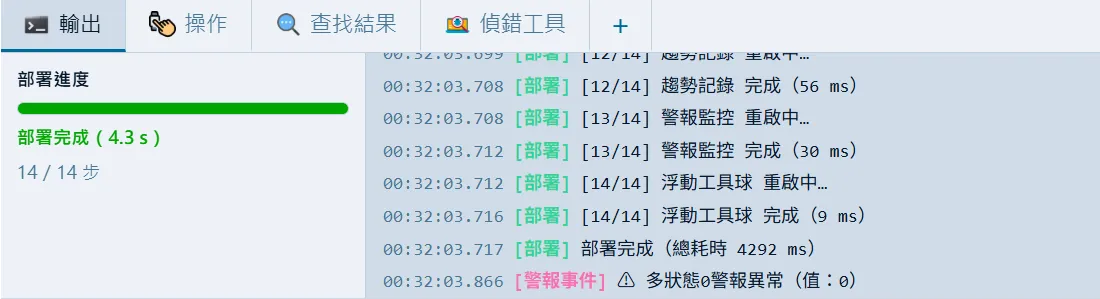
- "Run now" executes in the background with a 5-minute limit and reports the result and duration in the output panel when done.
- Schedules can be enabled or disabled, are exported and imported with the project, and recalculate the next run time from the Cron expression after import.
- When a schedule triggers a script, the operation log shows the operator as "Schedule: name"; function keys F1 to F12 can be set to run a given schedule immediately.
Background tasks
Pick a variable to watch (array elements supported) and the system offers conditions by type: ON or OFF for bits; equal, not equal, greater than, less than and so on for numbers, with an optional hysteresis value; equal, not equal and contains for strings. A cooldown in seconds can also be set.
- Screen actions: open popup, close popup, change page and play alert sound, performed on every open screen at the same time.
- Server actions: trigger script, output report, back up project, print file, export trend, alarm or operation log Excel, and record a video clip, with no screen open at all.
- Edge-triggered: fires once when the condition changes from false to true and does not repeat while it stays true; invalid values during communication failures are ignored; the first scan after loading sets the baseline so deployment does not cause false triggers.
- Every trigger is written to the operation log (operator: system); changes made while the project is running take effect immediately with no redeployment.
PLC screen control
Bind a 16-bit page-change register: when the PLC writes a page number, every screen switches immediately. The page offset defaults to 2000 (the PLC writes 50 to jump to page 2050), with optional "reset to zero after page change" and "write-back register" to report the current page number back to the PLC. Ideal for driving a touch panel's screens from PLC pushbuttons in place of a traditional HMI.
Screenshots
How to set it up
- 1Schedules: open the scheduler in the editor, add a schedule, name it and enter a Cron expression (for example 0 8 * * * for every day at 8:00).
- 2Choose the type and fill in the parameters: script, report template, trend table, time range, output file name and whether to aggregate.
- 3Click "Run now" to test, check the result in the output panel, then enable it.
- 4Background tasks: add a task under "Tasks" in the top bar, pick the variable to watch, let the system offer conditions by type, enter the threshold and hysteresis, and optionally a cooldown in seconds.
- 5Choose the action (screen or server); a video clip needs a source and the seconds before and after the trigger.
- 6Save; it takes effect immediately while running, and every trigger can be traced afterwards in the operation log.
FAQ
FAQ
Do schedules and background tasks still run when every screen is closed?
Yes. Both run continuously on the back end. The server actions of background tasks (scripts, reports, exports, backups) run normally with no screen open, and screen actions are performed on every screen that is open.
Will a condition that stays true keep triggering?
No. Background tasks are edge-triggered: they fire once at the moment the condition changes from false to true, and only fire again after it has gone false and true again. Numeric conditions can have a hysteresis value, and a cooldown in seconds can be set.
Does changing a schedule require a redeployment?
Background tasks edited while the project is running take effect immediately with no redeployment; schedules can be tested directly with "Run now" after changing the settings.