
POWERSCADA
Reports: Excel Templates Filled Automatically
PowerScada reports need no layout code: build the template in Excel with {{fieldName}} placeholders in the cells, upload it, and the system scans every placeholder so you can assign a data source to each one; when generated, the values are filled in and an xlsx file is produced.
It solves the daily and monthly chore of reading meters by hand and tidying up Excel: reports can be generated manually from the panel, by a screen button, on a schedule or automatically when a condition is met.
Templates and placeholders
Simple-value placeholders (for example {{reportDate}}) can bind to three sources: a fixed value, the system time or a live tag value. Multi-row detail uses array placeholders in "collection.field" format (for example {{meters.name}}); the template holds a single row, the bound C# script puts the rows into the collection, and the system expands downwards according to the number of records.
- Templates are xlsx, up to 10 MB; one script can fill several collections at once, for example a meter list and an alarm list.
- When placeholder names collide, the script's value overrides the value set in the panel; collection names are case-insensitive.
- System time and file name timestamps both use the project time zone.
- Project export and import include every template and schedule setting.
Generation and output
The output format is Excel xlsx. Get it from the Download button in the management panel, or write it to the external output directory set on the template for other systems to pick up.
- Ways to generate: a button in the management panel, the "Generate report" schedule type, the "Output report" background task action, or the function button actions "Generate and download report" and "Output report to local directory" (silent save).
- A touch screen on site can trigger report generation without logging in.
- Schedules also offer three timed Excel exports: trend data, alarm records and the operation log, for the last 7 days, this week, this month or a custom range.
Putting external database data on screen
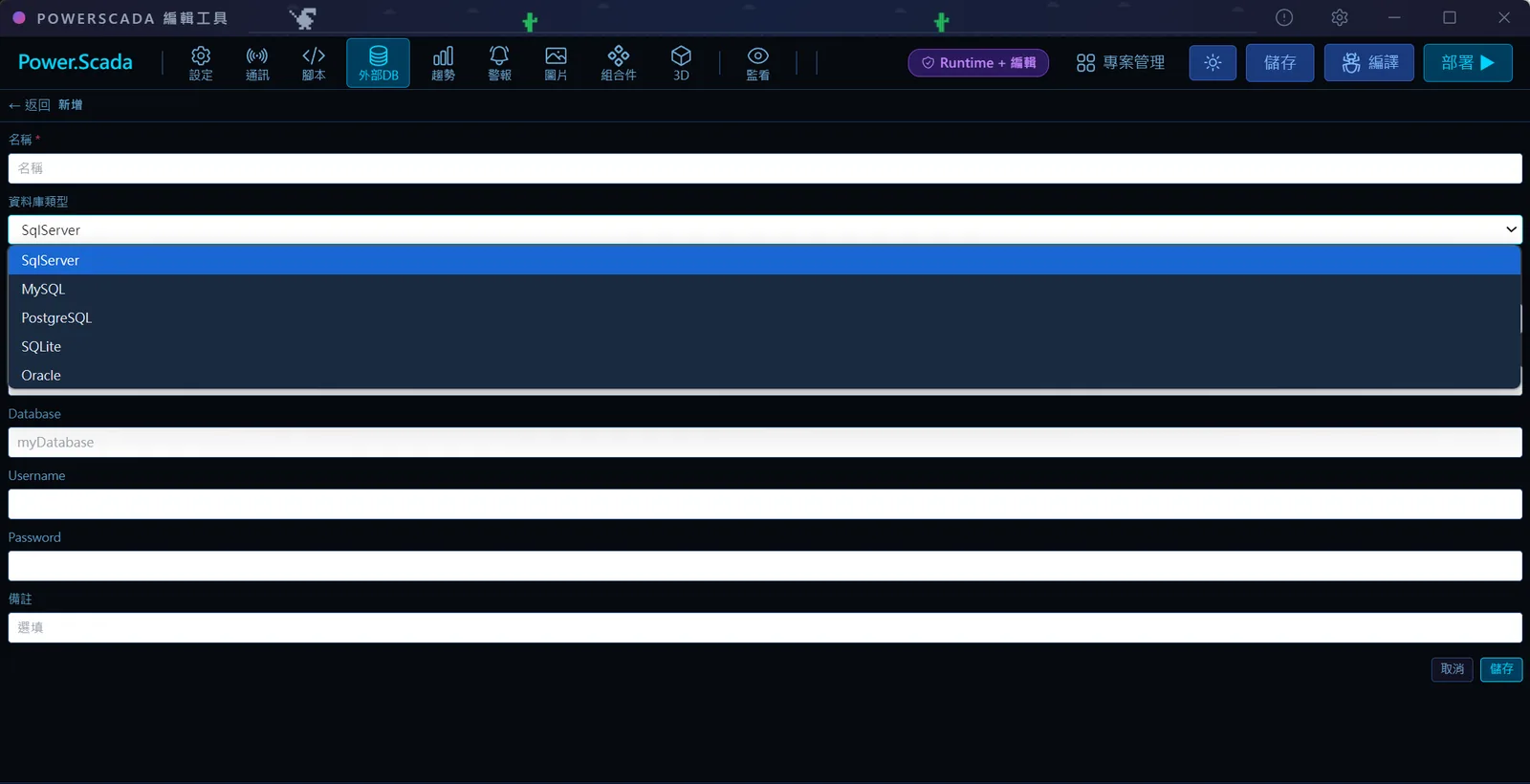
The SQL table component runs a SELECT query on an external database and shows the result as a table. It supports MSSQL, MySQL and PostgreSQL, with an auto-refresh interval in seconds and colors for the header, rows and alternate rows, which makes it easy to show existing ERP or MES data directly on the monitoring screen.
Screenshots
How to set it up
- 1Build the template in Excel: simple-value placeholders in single cells, "collection.field" placeholders in the detail row (one row only).
- 2Open "Report template management" in the editor, upload the xlsx and name it; the system lists every placeholder it found.
- 3Choose a source for each simple-value placeholder: fixed value, system time or current tag value.
- 4If there are detail rows, add a manually triggered script in script management that fills the collection, and select that script in the template settings.
- 5Click "Generate" to produce it immediately and use "Download" to check the layout in Excel.
- 6To automate, add a "Generate report" schedule with a Cron expression (for example every day at 8:00), or set report output in a background task or function button.
FAQ
FAQ
How do I fill multi-row detail, for example 20 power meters?
Write a single detail row of "collection.field" placeholders in the template; the bound script puts the rows into that collection and the system expands it into multiple rows automatically. The collection name must match the part before the "." in the placeholder, case-insensitively.
Can reports be generated automatically on a schedule?
Yes. Add a "Generate report" schedule, choose the template and enter a Cron expression (evaluated in the project time zone). When due, the template's script runs and the Excel file is produced, downloadable from the panel or written to the external output directory. A background task can also generate it when a condition is met.
Can reports be output as PDF?
The documented output format is currently Excel xlsx. If your site needs PDF or direct printing, raise it when you contact us and the team will explain what is feasible for your needs.